
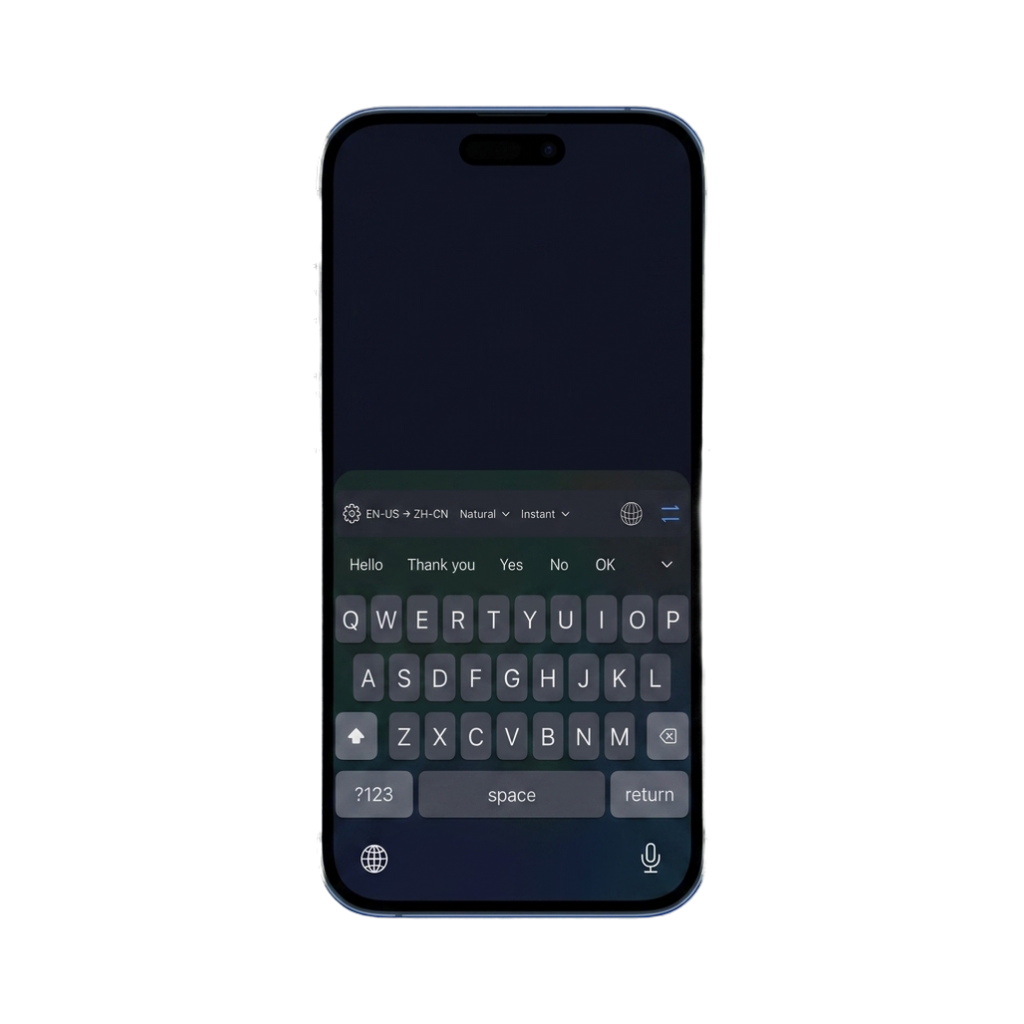
Type before you translate
LingoKey does not silently transform each keystroke. You write the thought you want to express, then choose when to request the translation. That makes the action visible and keeps you in control of the selected text.
The practical flow is:
- Confirm the source and target direction above the keys.
- Write the complete thought in the current text field.
- Choose Instant or Professional mode and, if needed, a preset or custom writing style.
- Tap translate.
- Read the inserted result before sending.
Review the result in context
Translation appears above the keyboard where you can read it next to the conversation. For important communication, check names, numbers, dates, and specialized terms before inserting or sending the result.
LingoKey can sound fluent while still misunderstanding an abbreviation, private joke, industry term, or ambiguous pronoun. A clear source sentence usually gives the translation service more context than a fragment.
Choose speed or polish
Use Instant mode for quick exchanges. Use Professional mode when tone and phrasing deserve extra attention. Start with a Natural, Casual, Formal, Business, or Social preset, or create a custom style with your own name and translation instruction. You can choose an icon, preview the result, and make selected styles available from the keyboard.
Changing the style does not change the language pair. For example, you can keep English to French selected and compare a Natural result with a more Formal one.
Undo when the context is unchanged
If you change your mind immediately after inserting a translation, LingoKey can restore the original text while the surrounding document context still matches. If another edit changes that context, the keyboard avoids replacing unrelated text.
Translate text you did not write
“Translate while typing” covers outgoing drafts. For an incoming message, copy the text and open LingoKey’s clipboard translation panel instead. The clipboard action is explicit and remains separate from normal keyboard input.
Where the workflow can change
Third-party keyboards work only where iOS and the host app allow them. Password fields, certain specialized fields, and apps that disable extensions may show Apple’s keyboard. Translation also needs Full Access and an internet connection. If the action does not start, check those two conditions before reinstalling the app.
See the full LingoKey setup and workflow.