
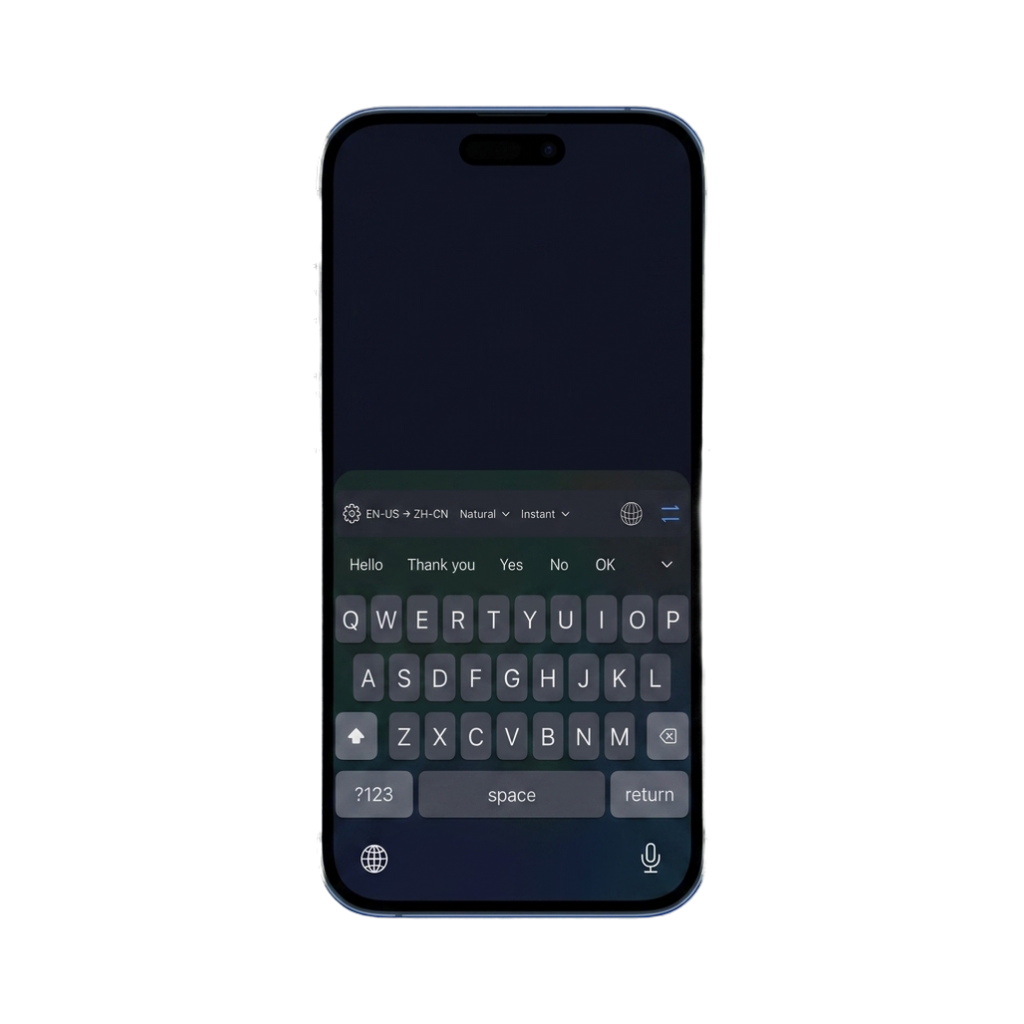
1. Download and open LingoKey
Install LingoKey from the App Store and open it once. The app shows your keyboard status, language pair, appearance, and setup guidance.
You can begin with a guest session. If you later use account features or a subscription, open the main LingoKey app to manage that state.
2. Add the keyboard in iOS
Open Settings → General → Keyboard → Keyboards → Add New Keyboard, then choose LingoKey. Open LingoKey in the keyboard list and turn on Allow Full Access so translation requests can reach the service.
Full Access does not mean LingoKey automatically receives everything you type. Translation is sent only after you request it. Read the detailed Full Access and privacy explanation.
3. Choose your languages
In the LingoKey app or keyboard toolbar, select the language you are writing and the language you want to produce. You can change the pair when the conversation changes.
The source side uses one of LingoKey’s supported keyboard layouts. The target side uses the broader translation catalog. The direction is always visible so you can catch a reversed pair before translating.
4. Translate where you type
Open a compatible text field, tap or hold the globe key to select LingoKey, and write your message. Tap the translate action to process the available draft. LingoKey inserts the result into the same text field so you can read it beside the surrounding conversation before sending.
Translation is explicit rather than character-by-character. Ordinary keystrokes remain ordinary typing; a network request begins only when you choose a translation action.
5. Pick the right mode
- Instant is for speed and everyday conversation.
- Professional is for more polished, natural wording.
- Writing styles help match formal, casual, business, natural, or social situations.
Mode and style solve different problems. Mode changes the translation approach; style changes the intended voice. You can keep the same language pair while switching either control.
6. Translate copied incoming text
To understand text you received, copy it first and open LingoKey’s clipboard translation panel. Refresh the panel after copying, then request the reverse translation. Clipboard translation is useful when the original text is visible but not editable.
On supported iOS versions, the system may ask whether LingoKey can paste from another app. That prompt is controlled by iOS. Approve it only when you intend to use the copied text.
7. Review or undo
Always review names, numbers, links, dates, and specialized terms. Automated translation can miss context even when the sentence sounds fluent.
After LingoKey replaces a draft, an undo action can restore the original text while the surrounding context still matches. If you edit the field or another app change alters that context, LingoKey disables the replacement rather than risk modifying unrelated text.
What to expect in different text fields
LingoKey works through Apple’s third-party keyboard extension system; it does not integrate with each app separately. Most ordinary message, email, note, browser, and social text fields can expose the keyboard. Password fields and some phone, payment, or app-restricted inputs may show Apple’s system keyboard instead.
If the keyboard does not appear, return to the LingoKey app and check the setup status. More troubleshooting is available in Help.